

PDF Tools
How to Sign a PDF You Got in an Email Without Printing
Download an emailed PDF, add a signature in your browser, verify the completed copy, and return it without printing or scanning.
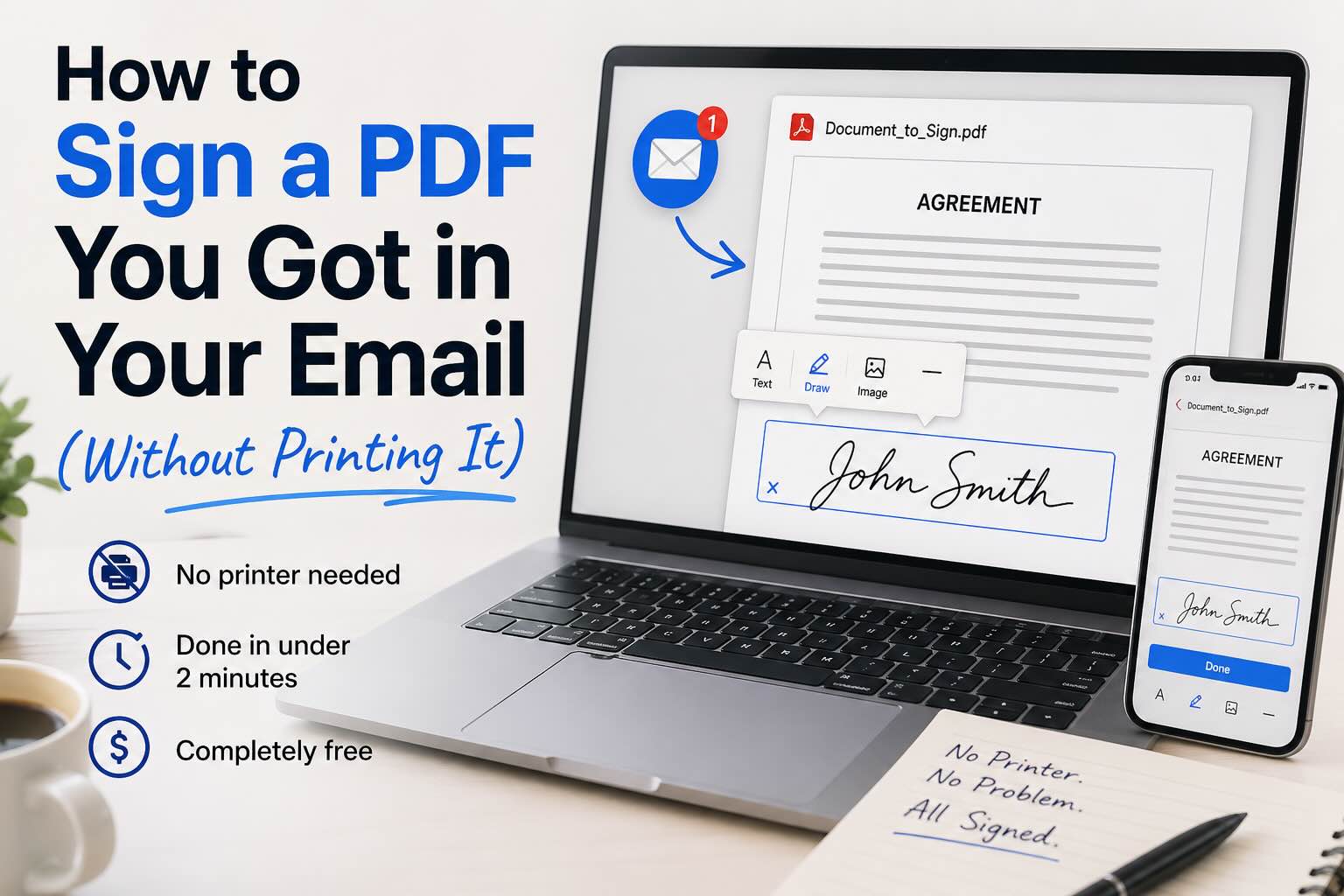
An email attachment does not need to become a print-sign-scan task. Download the PDF, complete it in an editor, and attach the downloaded version to your reply. That keeps the file path clear and avoids accidentally replying with the unsigned original.
Sign an emailed PDF in EveryTask
- Download the PDF attachment from your email to a folder you can find again.
- Open EveryTask's PDF Editor.
- Sign in or create a free EveryTask account. Signature requires an account.
- Upload the downloaded PDF.
- Choose Signature, draw, type, or select a saved signature, and click the document to place it.
- Complete any other required fields, then download the finished PDF.
- Open that downloaded file once and attach it to your email reply.
The editor does not need a desktop installation. Check the current account and file-size limits before making it part of a repeat workflow.
On a phone or tablet
The sequence is the same: save the attachment, open the editor in a supported browser, sign in, place the signature, and download the completed copy. A touchscreen can be useful for drawing, but a typed or saved signature is often easier when you are working quickly.
Make sure the browser has permission to download files and that you know whether the completed PDF was saved to Downloads, Files, or the app's chosen folder. Reopen it before sending.
Keep the email thread and files straight
Save the incoming attachment before you begin. After signing, give the result a distinct name such as Form-signed.pdf and attach that result—not the original—to your reply. If the sender sent several attachments, compare the filename and page count with their request before you sign.
Reply in the same email thread unless the sender directs you to a portal. A short note that the completed PDF is attached can help them distinguish it from the original. If you are returning a sensitive document, follow their approved delivery instructions instead of forwarding it to another address or uploading it to an unrelated sharing service.
Fill, then sign, then verify
If the PDF asks for a name, date, checkbox, or short answer, complete those items before adding the signature. A signature is generally the last editing action because it represents a completed version. Then inspect the downloaded PDF at normal reading size. Check that all required pages are present and that the signature has not obscured a form instruction.
If the attachment is a scan, you may need to place new text rather than click into an existing field. That is normal for image-based PDFs; it does not mean the email attachment is broken.
When the sender gave you a signing link
Use their link. A sender may need a particular order of signers, recipient verification, delivery tracking, or an audit record. Recreating the PDF in another editor can bypass requirements they expect to be captured in their workflow.
If they only emailed a PDF and asked for a completed copy back, the browser process above is usually appropriate. If they did not specify, ask before signing a consequential agreement.
Avoid these common mistakes
Replying with the original attachment. Rename the completed copy clearly or open it from your downloads folder before attaching it.
Signing before filling in the form. Add names, dates, and checkboxes first; then place the signature last.
Assuming every electronic signature is interchangeable. Requirements vary by recipient, document, jurisdiction, and risk. A visual signature does not automatically provide an audit trail or identity verification.
Using an unapproved sharing link for a sensitive document. If the file will not fit in email, use the recipient's approved file-sharing method.
Frequently asked questions
Can I sign a PDF from Gmail or Outlook? Yes. Download the attachment first, sign the local copy in EveryTask, then attach the completed download to a reply.
Do I need to print an emailed PDF to sign it? No. Use a PDF editor to place a signature and download the completed PDF.
Is an emailed PDF signature legally valid? It depends on the agreement and applicable requirements. Follow the sender's process and obtain legal advice for documents where the consequence matters.
Can I return a signed PDF from a phone? Yes. Download the attachment, use a supported browser to complete it, then attach the completed download to the reply. Check where your phone saved the file first.
What if the sender asks for a signing link instead? Use the link. That may be how they track recipient completion or enforce the signing order.
If you need to correct an entry
Go back to the original attachment or source file, make the correction, and export a fresh completed copy. Do not rely on a recipient to infer which of several attachments is final. If you already sent an incorrect copy, tell them promptly which filename supersedes it and follow their process for a replacement.
Open the PDF Editor when you are ready to sign the attachment.