PDF ToolsMay 5, 2026

How to Extract One Page From a PDF Online Free

Need to pull a single page out of a PDF? Here's how to extract one page, or any specific pages, from a PDF in under a minute. Free, no account, no software.

How to Extract One Page From a PDF Online Free

You have a 40-page PDF. You need page 12. Here's how to pull it out as a separate file in under a minute, free, with nothing to install.

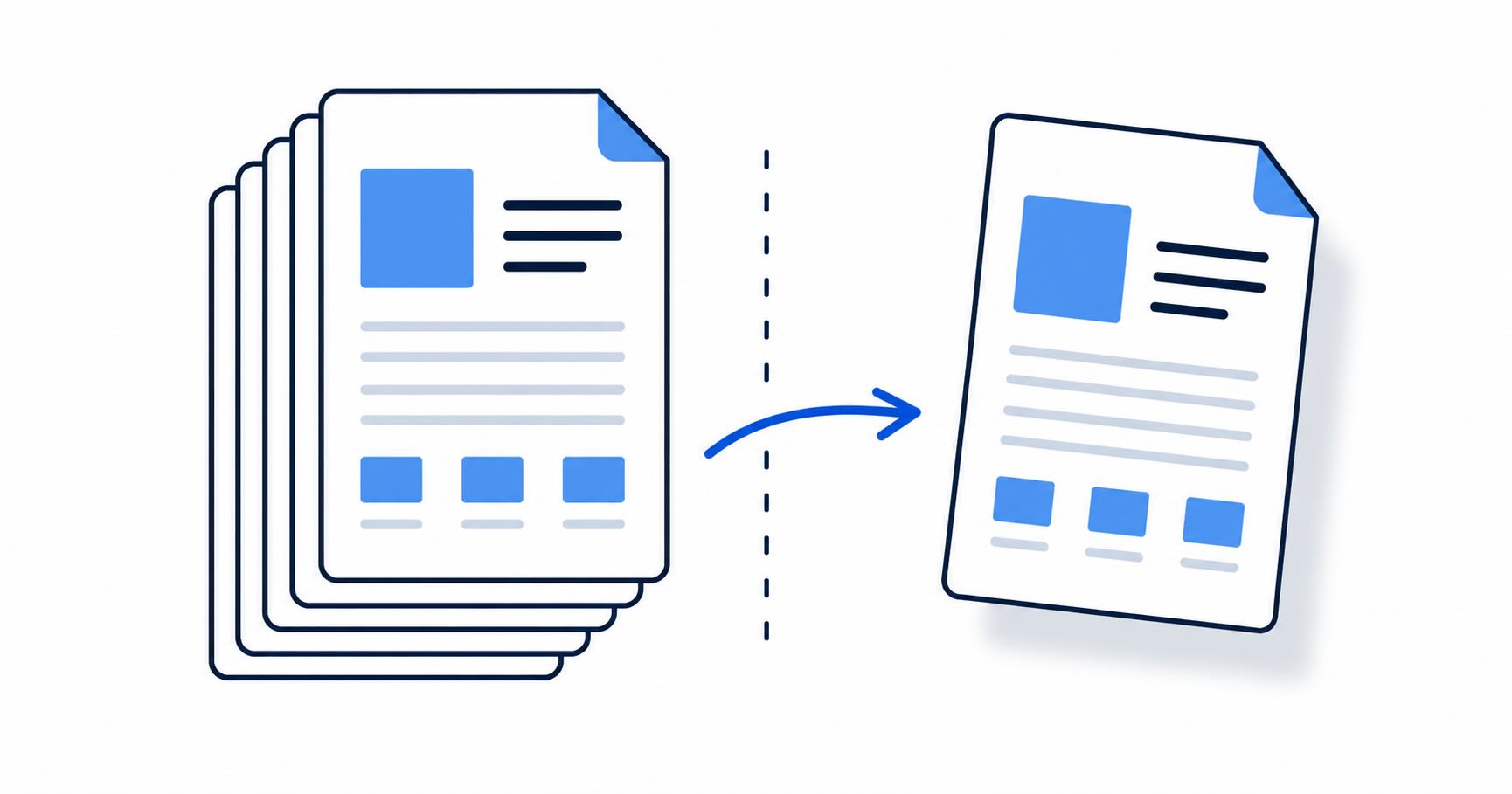
How to extract one page from a PDF online free without installing software

Extracting a single page from a PDF is one of the most common document tasks: pulling a specific invoice from a statement, isolating a signed page from a contract, or saving one form from a multi-page packet. All of them need the same thing: a tool that lets you select exactly which pages to keep.


How to Extract One Page From a PDF Online Free

  1. Go to EveryTask's Split PDF tool
  2. Upload your PDF
  3. Choose Extract specific pages
  4. Type the page number you want (e.g. 12)
  5. Click Split PDF and download the result

Your file is processed in your browser. Nothing is uploaded to a server, so sensitive documents like bank statements, contracts, and medical records stay on your device.

The downloaded file contains only the page you specified. The original PDF on your device is unchanged.


How to Extract Multiple Pages or a Page Range From a PDF

The same Extract specific pages mode handles any combination of pages in one go. The input field accepts individual page numbers, ranges, or a mix of both.

  • Single page:
    5
  • Multiple non-consecutive pages:
    1, 5, 12
  • A range:
    5-12
  • A mix:
    1-3, 5, 7-10
  1. Go to EveryTask's Split PDF tool
  2. Upload your PDF
  3. Choose Extract specific pages
  4. Type your page numbers or ranges in the input field
  5. Click Split PDF and download

The output contains only your specified pages in the original order. This is useful for pulling a specific section from a report, extracting only the signed pages from a contract, or saving the relevant pages from a bank statement without the full document.


How to Split a PDF Into Individual Pages

If you need every page as its own separate PDF file, use the Split into individual pages mode rather than specifying page numbers manually.

  1. Go to EveryTask's Split PDF tool
  2. Upload your PDF
  3. Choose Split into individual pages
  4. Click Split PDF and download

The tool creates one PDF file per page automatically. A 10-page document produces 10 separate files. This is the fastest approach when you need to distribute pages individually or archive each page separately.


How to Split a PDF Into Equal Sections

The third mode, Split every N pages, divides a document into equal chunks of a specified size.

  1. Go to EveryTask's Split PDF tool
  2. Upload your PDF
  3. Choose Split every N pages
  4. Enter the number of pages per section
  5. Click Split PDF and download

A 30-page document split every 10 pages produces three separate PDFs of 10 pages each. Useful for dividing a long report into chapters, breaking a scanned document into manageable sections, or splitting a combined invoice batch into individual submissions.


Why You Can't Just Delete Pages in a PDF Viewer

Most PDF viewers, including Chrome, Preview, and Adobe Reader, let you view individual pages but not save a subset of them. There's no "save this page only" option in a standard viewer.

The technical reason is that PDF files store pages as objects within a single file structure. Extracting a page means reading that object, writing it to a new file with the correct PDF headers and cross-references, and closing the file properly. A viewer isn't built to do that. It's built to display. A PDF editor or splitter is.

This is also why printing "current page" to PDF is the workaround most people try. It works but has a catch: the output is a re-rendered image of the page rather than the original PDF content. Text may not be selectable, font quality can degrade slightly, and embedded form fields disappear. For anything where content quality matters, a proper extraction tool produces a cleaner result.


How to Extract a Page From a PDF on Mac

Mac's Preview handles page extraction natively without any third-party tool.

  1. Open the PDF in Preview
  2. Go to View, then Thumbnails to open the sidebar
  3. Click the page you want to extract
  4. Go to File, then Print
  5. In the print dialog, click the PDF dropdown in the bottom left and choose Save as PDF
  6. Name the file and save

This saves only the selected page as a new PDF. For multiple pages, hold Cmd and click each thumbnail before printing.

The catch: this method re-renders the page rather than extracting it natively, so the result is an image-based PDF rather than a true extraction. For most purposes this is fine. For documents where you need selectable text or intact form fields in the extracted page, use the browser-based split tool instead.

For a full breakdown of PDF tools available natively on Mac, see how to rotate PDF pages on a Mac which covers the built-in PDF capabilities of Preview and Quick Actions in detail.


How to Extract a Page From a PDF on Windows

Windows has no built-in tool for page extraction. The fastest free option is the browser method above. Open EveryTask's Split PDF tool in Chrome, Edge, or Firefox, upload the PDF, select your page, download.

Microsoft Edge has a basic print-to-PDF workaround similar to Mac's Preview method: open the PDF in Edge, go to Print, set the page range to the specific page number you need, choose "Microsoft Print to PDF" as the printer, and save. Same caveat applies. The output is re-rendered rather than natively extracted.


How to Extract a Page From a PDF on iPhone or iPad

  1. Open Safari on your iPhone or iPad
  2. Go to EveryTask's Split PDF tool
  3. Tap to upload your PDF from the Files app
  4. Choose Extract specific pages and type the page number
  5. Tap Split PDF and download the result back to Files

This works without installing any app. The extracted PDF saves to your Files app and can be shared directly from there via Mail, Messages, or any other app.


Common Uses for PDF Page Extraction

Pulling a single invoice from a statement. Banks and suppliers often send monthly statements as a single PDF containing every transaction or invoice. When you need to share or submit one specific invoice, extracting that page is faster than sending the entire document.

Isolating a signed page from a contract. After a multi-page contract is signed, you sometimes only need to share the signature page as confirmation. Extracting it takes less than a minute and avoids sharing the full contract terms unnecessarily.

Saving a specific form from a packet. Government forms, HR packets, and application documents frequently bundle multiple forms into one PDF. Extract only the form you need to fill in or submit.

Sharing one page from a report. If a colleague needs a specific chart or data table from a longer report, extracting that page is faster than screenshotting it and preserves the original quality and any selectable text.

Removing a confidential page before sharing. If a document contains one page you don't want to share, such as a personal reference, a pricing page, or internal notes, extract all the other pages and save that version for distribution. For a full guide on removing content from PDFs, see how to remove something from a PDF.


What Happens to the Original PDF When You Extract a Page

Nothing. The original file on your device is unchanged. When you download the extracted page from EveryTask's split tool, you're downloading a new file containing only the selected page. The source PDF remains exactly as it was.

If you want to delete a page from the original rather than extract it into a separate file, use the Extract specific pages mode and enter all page numbers except the one you want to remove. The downloaded file contains only those pages. The unwanted page is gone from the output.


Common Problems When Extracting Pages From a PDF

The extracted page is blank or shows as an error. This can happen with PDFs that use cross-page references, where a page depends on resources defined on another page. The page renders correctly when all pages are present but breaks when extracted alone. Re-extract with one or two surrounding pages included to bring the required resources along.

The text in the extracted page isn't selectable. If you used the print-to-PDF workaround (Preview on Mac or Edge on Windows), the extracted page is a rendered image rather than a true PDF extraction. Use the browser-based split tool instead, which performs a native extraction and preserves the text layer.

The extracted PDF is larger than expected. PDFs often embed shared resources (fonts, images) that are referenced by multiple pages. When you extract a single page, some tools include the full resource set from the original document rather than stripping unused resources. The extracted page is functionally correct. It's just carrying some extra data. This is rarely a practical problem.

The page numbers in the extracted file restart at 1. This is expected. The extracted PDF is a new document containing only your selected page. If the page was labelled "page 12" in the original, the extracted version will be "page 1" of its own file. Renaming the file with the original page number in the filename avoids confusion.


Frequently Asked Questions

Can I extract one page from a PDF for free? Yes. EveryTask's Split PDF tool extracts individual pages for free with no account required and no monthly limits. Select the page, download, done.

Does extracting a page from a PDF change the original file? No. You download a new file containing the extracted page. The original PDF on your device is unchanged.

Can I extract multiple pages from a PDF into separate files? Yes. In the Extract specific pages mode, enter multiple page numbers or ranges (e.g.

1, 5, 12
or
1-3, 7
). The output is a single PDF containing all specified pages. If you need each page as its own file, use the Split into individual pages mode instead.

What's the difference between extracting and splitting a PDF? Extracting means saving specific pages as a new file. Splitting usually means dividing a document into multiple parts, either at specific points or into equal sections. For a complete guide to all splitting methods, see the complete guide to splitting PDF pages.


Extract pages from your PDF now at EveryTask. Free, no account, nothing uploaded to any server.


Need to do more with your PDF? EveryTask also lets you merge PDFs, rotate pages, edit and sign documents, and convert images to PDF. All free, all in your browser.

extract one page from pdfhow to extract a page from pdfpull one page from pdfextract page from pdf online freesave one page of pdfremove page from pdfsplit pdf extract pagepdf page extractor free