

PDF Tools
How to Split PDF Files: Extract Pages, Ranges, or Regular Groups
Split a PDF into individual pages, extract selected ranges, or create equal page groups—then understand when the result downloads as a PDF or ZIP file.
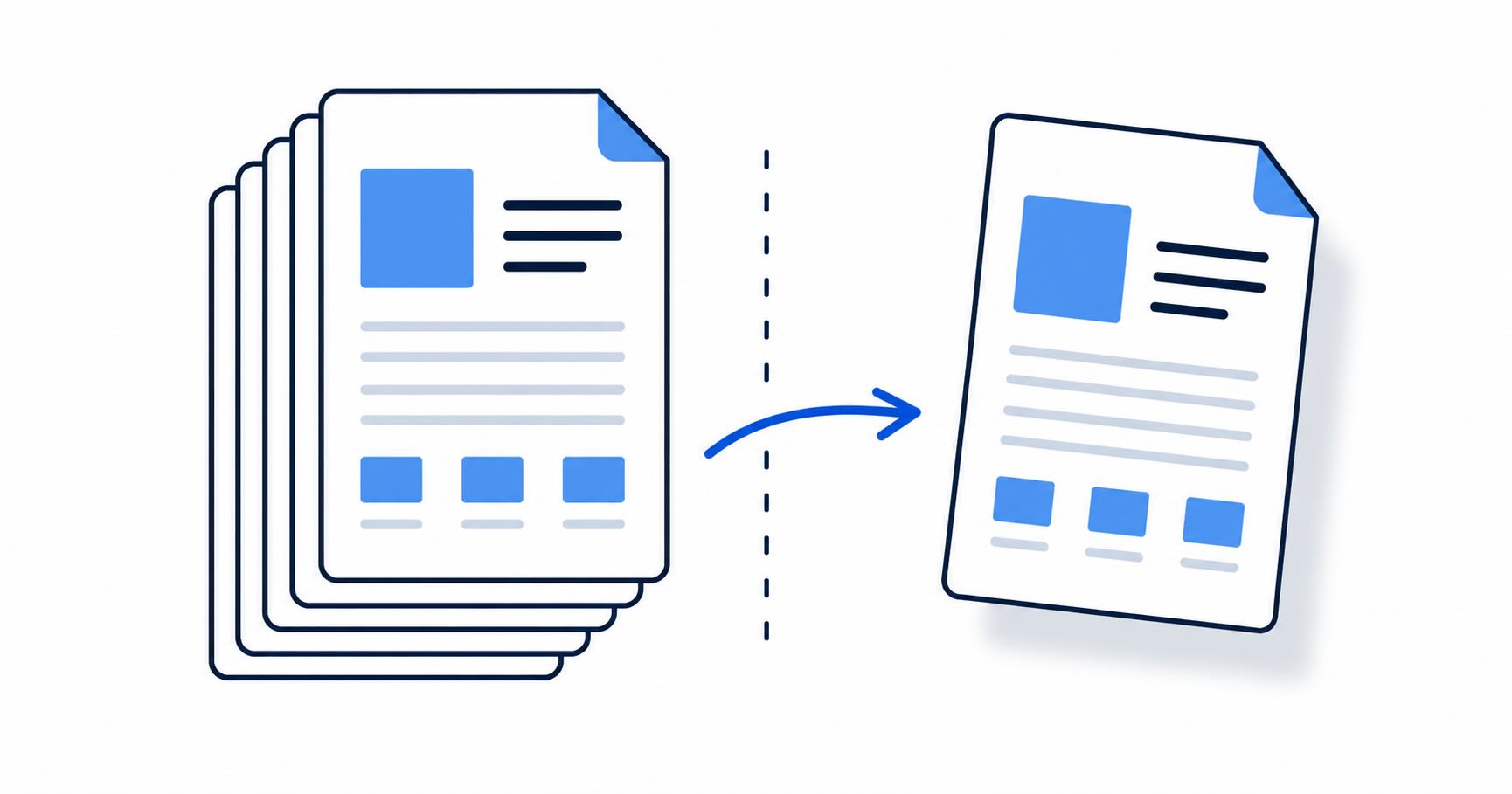
“Split PDF” covers three useful jobs. Pick the output first so you do not download a ZIP when you expected one extracted PDF.
Extract a selected page range
Use this when you want a single new PDF containing only chosen pages.
- Open EveryTask Split PDF.
- Upload the PDF and select the specific-range option.
- Enter pages such as
1-3, 5, 7-10. - Split and download the extracted PDF.
Split into individual pages
Choose all pages when you want one separate PDF for every source page. The download is a ZIP file because it contains multiple PDFs.
Split every N pages
Choose every N pages for packets such as groups of five pages. The output is also a ZIP containing the resulting PDF groups.
Check the page numbers
Page numbers refer to the PDF's displayed page count, not any printed page number in the document footer. Review the page preview and output before sending it. The public tool works without an account, subject to current file-size limits.
Need to recombine selected pages afterward? Use Merge PDF.
Examples that prevent the wrong download
To send only the signature page from a 12-page agreement, enter that page number as a specific range. To give each student one page from a class packet, choose all pages and distribute the PDFs from the ZIP. To create four review packets from a 40-page record, split every 10 pages.
Keep the original PDF until you confirm the output. Splitting creates a new result; it does not change the source document.
Plan the result before choosing a mode
Use a specific range when one person needs a selected set of pages in one PDF. Use all pages when each page must become its own document. Use every N pages when a long record must become regular review packets. The choice changes both the download type and what the recipient will receive.
For example, a 24-page packet split every 6 pages produces four PDFs in a ZIP. A range of 1-3, 8, 12-14 produces one PDF containing seven selected pages. Reviewing the page preview before processing helps prevent an off-by-one error.
What to do after splitting
Rename the output clearly, especially after extracting several different ranges. Rotate a page if needed, then merge only the pages that should become a final packet. Keep the source intact so you can produce a corrected result if a recipient asks for a different range.
Avoid accidental disclosure
Splitting is a way to select pages, not a way to guarantee that sensitive material has been removed. Check headers, footers, visible account details, and page content before sharing. If information must no longer appear in an exported PDF, use an appropriate redaction workflow.
Can I split a PDF without an account? The public Split PDF tool works without an EveryTask account, within its current file-size limit.
Does range order matter? The tool uses the selected PDF pages in their document order; review the result before sharing.
Work from the page count, not assumptions
Before entering a range, look at the actual PDF page count and preview. A document can have a cover, unnumbered pages, or a printed page number that does not match its position in the file. If a recipient asks for “page 5,” confirm whether they mean the fifth PDF page or the visible number printed on the page.
Use splitting as a preparation step
Splitting can prepare a smaller packet before another action. Extract the relevant pages, rotate any incorrect scans, then merge only the approved material when one final PDF is required. Complete text, signature, or redaction work after the correct pages and orientation are established. This order prevents work from being placed on a page that is later excluded.
Keep outputs easy to identify
Use names such as contract-signature-page.pdf or report-pages-3-to-6.pdf. When the output is a ZIP, open it and confirm each included PDF before sharing. Keep the source document until the recipient confirms the result is sufficient.
Splitting selects pages; it does not remove confidential details inside those pages. Review the content and use an approved redaction process where necessary.
Match the output to the request
Before splitting, decide whether the recipient needs one selected PDF, every page separately, or regular page groups. This prevents sending a ZIP to someone who asked for one attachment or including extra pages when only a small range was requested.
Preserve document context
Before extracting, make sure a selected page does not rely on a preceding instruction, reverse side, or attachment that the recipient also needs. A technically correct page range can still be incomplete for its purpose. Read the requested material as a packet before you send the shorter result. That review protects both accuracy and context.